Listings Setup
How to integrate, import, and manage your listings on Blueground
D1. Which systems can I integrate with?
Blueground supports integrations through major PMS and channel managers to ensure accurate sync of content, pricing, and availability.
Supported PMS / Channel Managers
- Guesty
- Rentals United
- Siteminder
- Hostaway
- Hostfully
- Avantio
- Cloudbeds
- Mews
- Hostify
- NextPax
- Rentals Ready
- DerbySoft
Source of truth
Your PMS controls:
- Prices
- Fees
- Taxes
- Availability
- Photos
- Descriptions
- Property-and-account level discounts (you can also manage in partner portal)
Blueground reads your data and displays it accordingly.
D2. Why manual listings are not supported
Blueground does not support manual listing creation because syncing pricing, availability, and content manually increases the risk of errors like double bookings. Partners must use a supported integration method to onboard listings.
D3. How listings are imported & synced
Once Blueground is enabled as a channel:
- The PMS sends listing data to Blueground
- Listings appear in the Partner Portal and get published on the Blueground website
- Pricing, content, and availability sync automatically
D4. Publishing, unpublishing & removing listings
To remove a listing via the Partner Portal:
- Go to Listings
- Use the Published / Unpublished toggle
D5. How to preview your listing
To preview the listing exactly as guests see it:
- Log in to the Partner Portal
- Go to Listings
- Click the three dots (⋮) beside the listing
- Select Blueground URL
This opens the live guest-facing page.
D6. How to set up your Airbnb connection
Locate your Airbnb profile
On a desktop browser (not the mobile app):
- Log in to your Airbnb host profile, scroll to the “My listings” section, and click on any listing you manage
- Scroll down to the “Meet your host” section and click your profile picture
- Once on your profile page, copy the URL from your browser’s address bar. It typically looks like:
https://www.airbnb.com/users/(profile or show)/<user_ID>
For a walkthrough of these steps, watch this video:
Add your Airbnb’s listings iCal URLs to the Blueground Portal
On a desktop browser
- Log in to your Airbnb account
- Click Host (or switch to Hosting mode if you're in traveling mode)
- Go to Calendar
- Select the listing
- Click Availability.
- Scroll to Connect Calendars
- Click the Connect to another website option
- Copy the link Airbnb calendar link you see on Step 1
For a walkthrough of these steps, watch this video:
How can you add the Airbnb iCal link to the Blueground portal?
- Log in to the Blueground portal
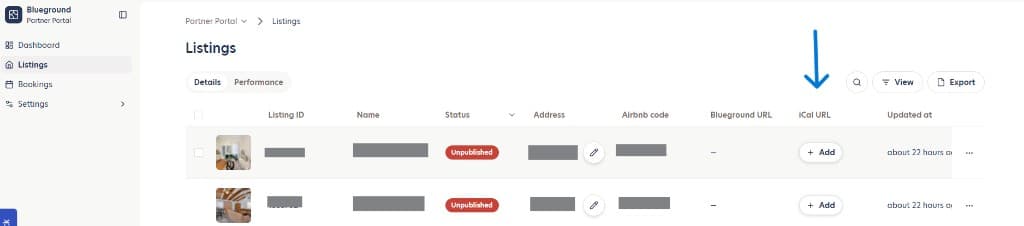
- Navigate to the Listings tab.
- Locate the corresponding listing.
- Paste the copied Airbnb iCal URL into the iCal URL field for that listing.
- Click Enter
Important notes
- Each listing has its own unique iCal link. Therefore, partners will need to repeat the process for every listing they would like to sync with the Blueground portal.
- The iCal link is read-only. It allows Blueground to retrieve the listings' availability but does not make any changes to the Airbnb calendar. For example, bookings received through Blueground will not automatically block dates on the Airbnb calendar, so this action needs to be taken by the partner separately.
- If you want your calendar to get automatically blocked once receiving a booking through Blueground (in order to avoid overbookings) you can use Blueground’s iCals.
Add Blueground’s iCal to your Airbnb console
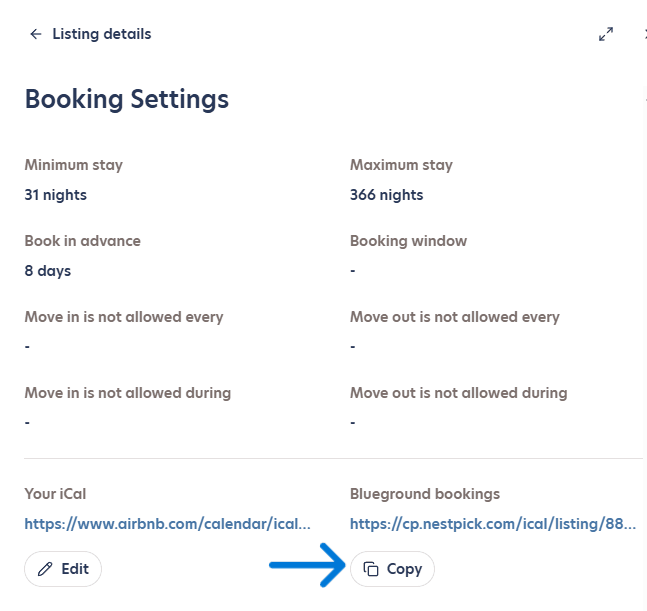
- Log in to the Blueground portal
- Click on the Listings tab
- Select the listing
- Click on the Availability Calendar section
- Select Bookings Settings
- Copy the generated link under Blueground bookings
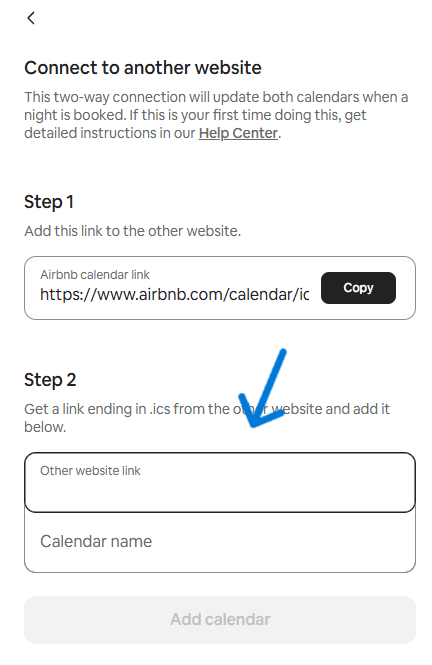
- Go to your Airbnb Host account and navigate to Calendar. Select the relevant listing, then click Availability. Scroll down to Connect calendars and select Connect to another website.
- In Step 2, paste the iCal URL generated by Blueground into the Website link field and enter a calendar name (for example, Blueground)
- Click ‘Add calendar’
Update your listings’ addresses
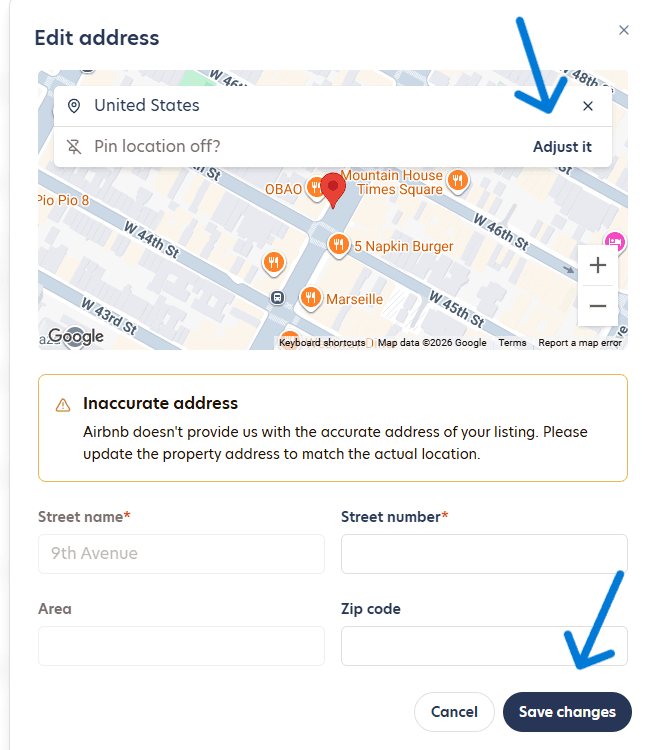
- Log in to the Blueground portal
- Click on the Listings tab
- Select the listing
- Click Update address or Edit Address
- Click on ‘Adjust it’ to move the pin on the correct location
- Click on Update full Address
- Review the address details (street name, number and zip code)
- Click on Save Changes
D7. Why is my listing blocked — and how to fix it
A blocked listing has been imported successfully but can't be published until specific issues are resolved. Your portal dashboard's Action Center shows the exact blocking reason for each listing and the action needed — most issues are self-serve fixes.
Two things can keep a listing from going live:
- Blocked — imported fine, but a specific, fixable issue must be resolved first (below). Fix it, and the listing publishes automatically.
- Not eligible — the listing doesn't currently meet Blueground's market or quality standards. Some reasons are automatic (e.g., an unsupported market); others come from a manual quality review. These usually can't be cleared with a quick edit.
Photo issues
- Too few photos - upload more photos of the unit.
- Missing bedroom photo - every bedroom needs at least one photo.
- Missing living room / common area photo - add photos of the apartment living room
- Photo quality below standards - replace flagged photos with sharper, well-lit, tidy shots.
- Photos don't match the listing information - align the photos with the description and basic info (e.g., bedroom count).
Listing information issues
- Description too short - expand the description to cover the space, amenities, building, and neighborhood.
- Missing address details - add the full address in your PMS so the listing can be placed on the map.
- Currency mismatch - a surcharge or fee uses a different currency than the listing; align them in your PMS.
Pricing & availability issues
- Missing pricing information - the listing has no usable rates; check pricing in your PMS and let it sync.
- Availability opens too far in the future - open your calendar for nearer-term dates.
- Invalid stay settings - check that minimum and maximum stay values are consistent and not overlapping each other.
Account-level
- Fewer than 5 active listings - publishing requires an active portfolio of at least 5 listings.
D8. Why is my listing marked not eligible
Automatic reasons
- Market not supported — the listing's city or area isn't currently served by Blueground.
- Single room, not a full home — Blueground lists self-contained homes and apartments; a single private or shared room isn't eligible.
Quality reasons (from our review)
We review listings against standards that protect guest experience and conversion. A listing may be marked not eligible when:
- Interior doesn't meet our standards - dated design or a finish that doesn't match the platform's level.
- Furnishing quality & condition - worn, damaged, low-quality or mismatched furniture, or missing key pieces like a coffee table or bedside tables (studios excluded).
- Layout & structure - poor structural condition (cupboards, window frames, floors, bathrooms), no living-room area (excluding studios), or underground units.
- Bed type - a sleeping setup that doesn't meet our standards, e.g. multiple beds crammed into one room, or a studio relying only on a sofa bed.
- Property maintenance - the unit isn't presented "ready to move in" (personal items left out, visible wear).
- Apartment below minimum size - units under 20 sqm.
- Hotel/room - the space is a hotel room or lacks a private, fully-equipped kitchen (including an oven); Blueground lists self-contained homes.
- Themed apartment - strong, specific theming (e.g., cartoon-themed bedrooms) that limits broad guest appeal.
Think it's wrong? If a not-eligible decision doesn't fit your listing, contact your account manager with the details and photos, and we'll re-review.
D9. Understanding your Listing Score
Every listing has a Listing Score — a percentage that reflects how well it's set up to attract bookings. Listings that score higher convert more guests, so the score doubles as a checklist of what to improve.
Your Listing Score has two parts:
- Content score — how complete and high-quality your listing content is: photos, description, apartment size, floor, and key amenities.
- Availability score — how bookable your calendar and stay rules make the listing: advance booking window, min/max stay flexibility, and open availability.
Where to find it
- In the listings table, a Listing score column shows each listing's score at a glance, and you can filter the table by score range.
- On a listing, the score appears as a gauge with a View improvements link.
How to improve your score
The improvements view splits your to-dos into Content improvements and Availability improvements. Each item tells you what to fix and gives you one action:
- Add — for details you can set directly in the portal (apartment size, floor number).
- Edit on [your PMS] — for content managed in your PMS (photos, description, amenities, and availability or stay rules); this opens your PMS.
- View gallery — to review low-quality photos.